Creating Your First Page
Step-by-step guide to creating your very first landing page
Welcome to LightPage! Let's create your first landing page together.
Step 1: Choose Your Page Type
When you click "Create Page" in the navigation, you'll see different page types to choose from.
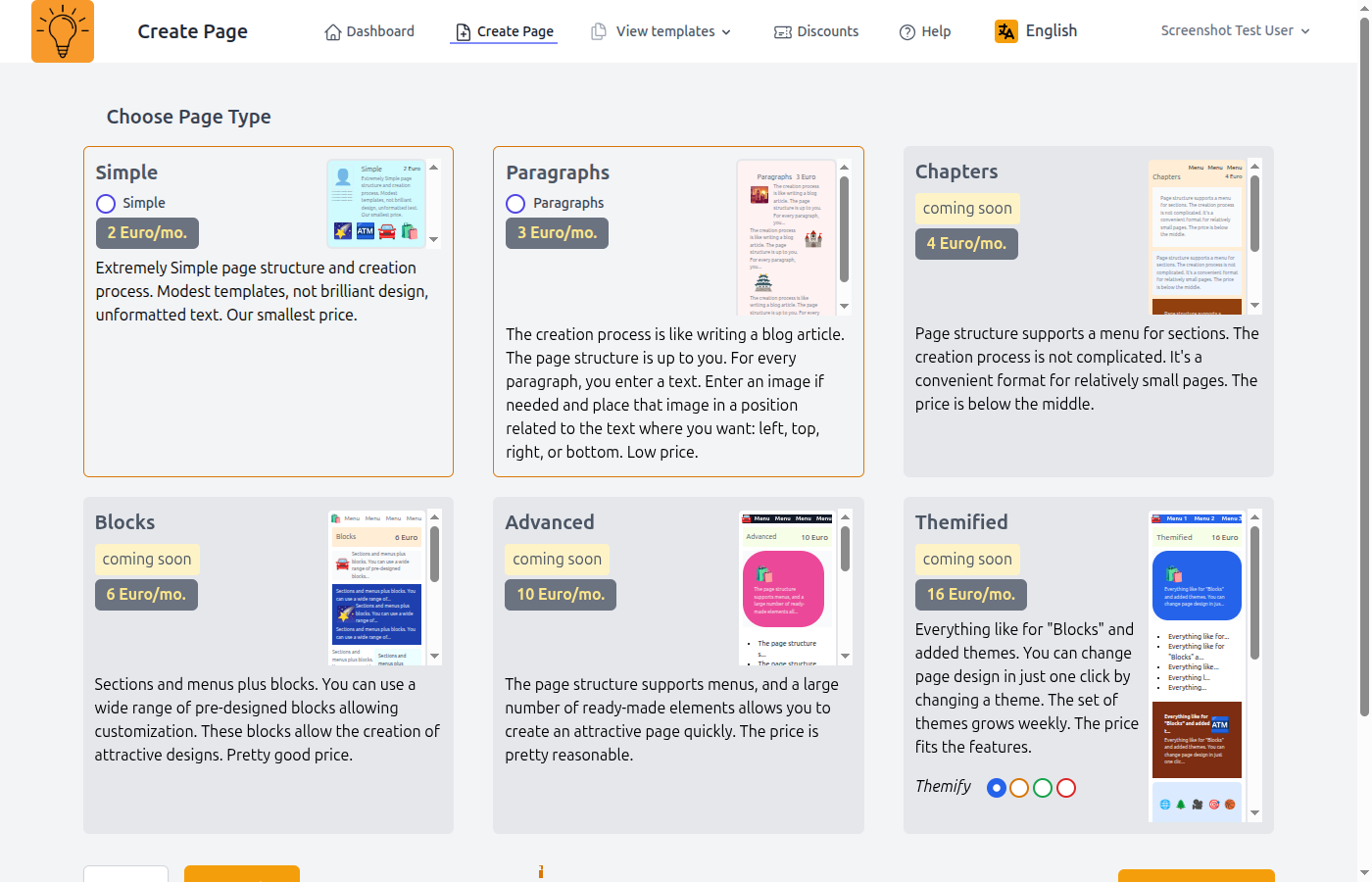
- Simple Page - Perfect for single-page landing pages with hero section, features, pricing, and contact
- Paragraphs Page - For more complex pages with multiple custom sections and rich content
Tip: For your first page, we recommend starting with "Simple Page" - it's easier to use and perfect for most landing pages.
Step 2: Fill in Basic Information
After selecting your page type, you'll need to provide some basic information about your new page.
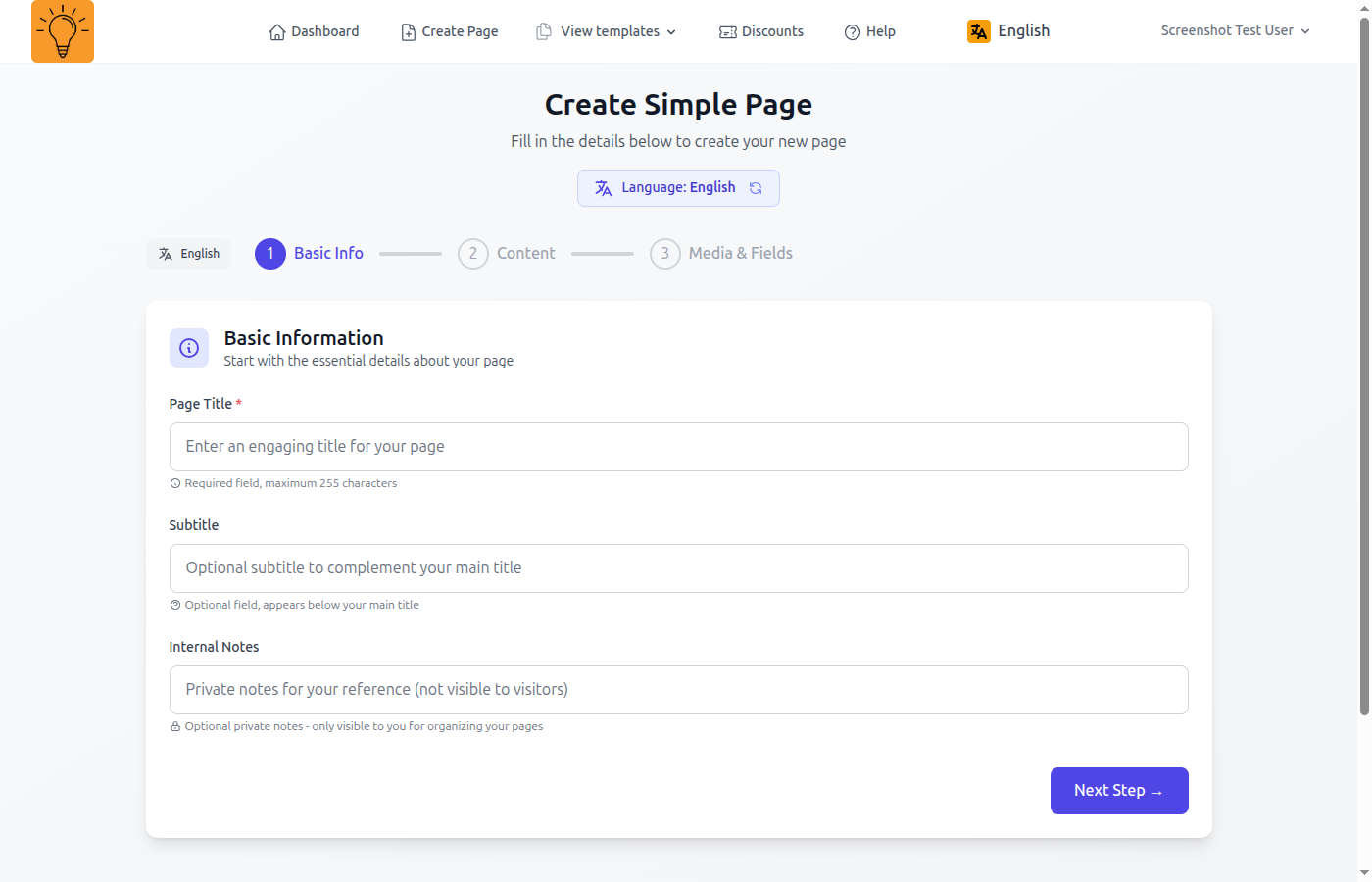
Page Title
Enter a clear title that describes your page's purpose. This will appear in the browser tab and search results.
Example: "My Awesome Service"
URL Slug
The slug is the part of your page URL. Use only lowercase letters, numbers, and hyphens. For example: "my-first-page"
Example: "my-first-page"
Step 3: Choose a Template
After creating your page, you'll be redirected to the editor where you can choose a professional template as your starting point.
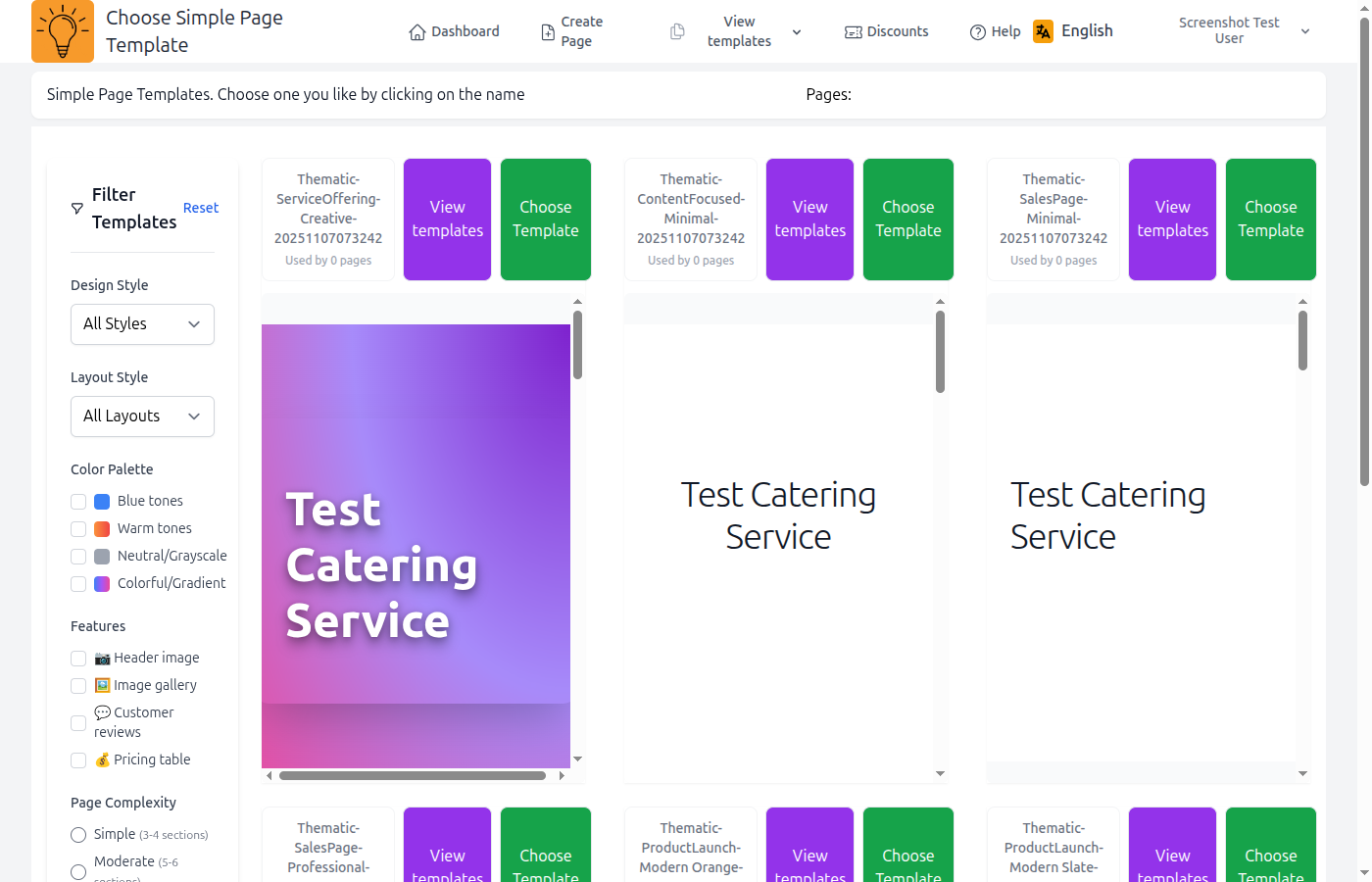
Browse through our collection of templates and select the one that best matches your style and needs. You'll be able to fully customize it later.
Step 4: Customize Your Content
Now it's time to make the page your own! Use the editor to:
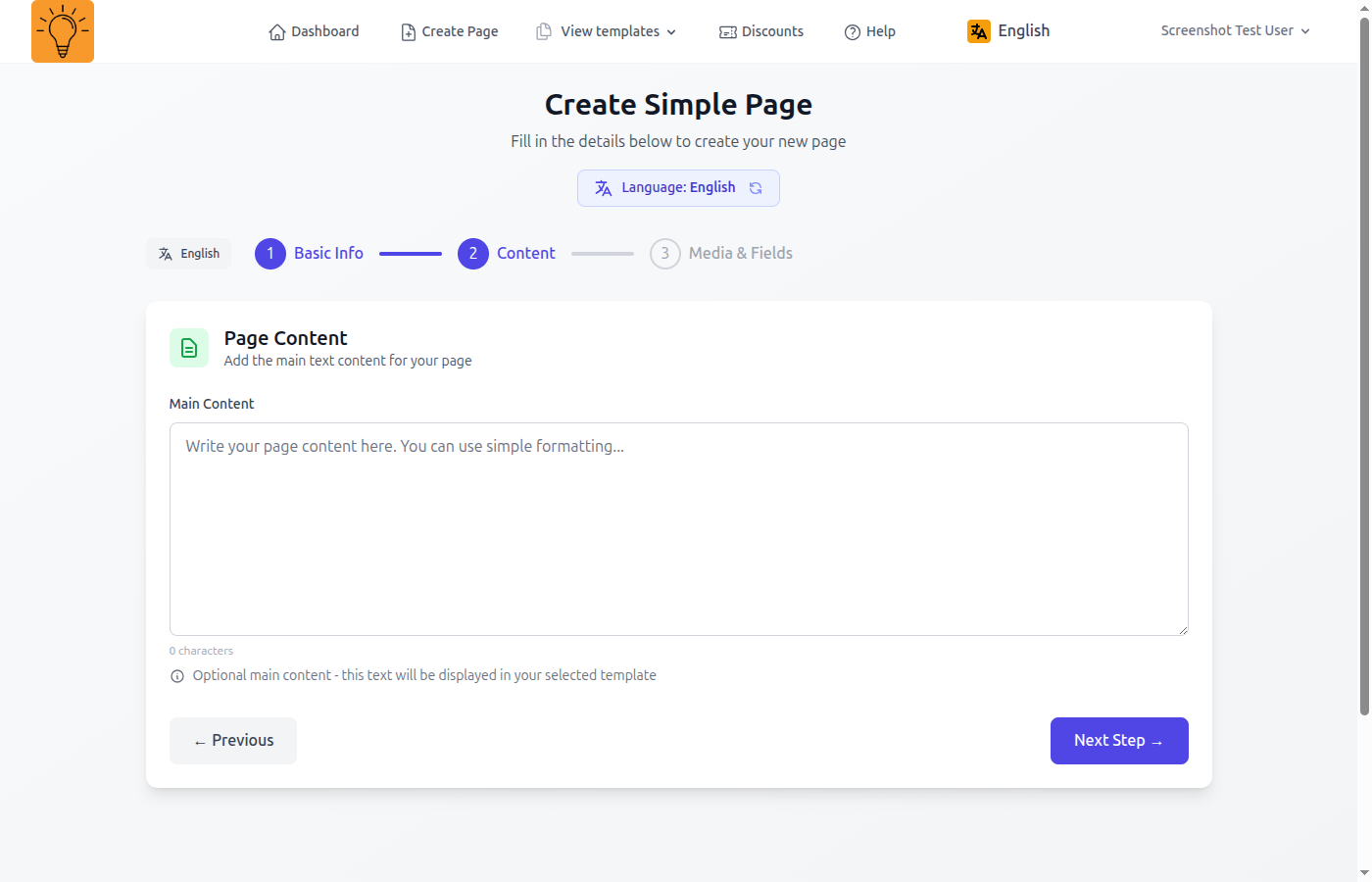
- Edit headlines, descriptions, and text content
- Upload your own images and logos
- Customize colors and fonts to match your brand
- Add or remove sections as needed
Step 5: Publish Your Page
When you're happy with your page, click the "Publish" button to make it live. Your page will be accessible at your domain URL.
Note: To publish your page, you'll need to activate a paid plan. The free trial allows you to create and preview pages before publishing.