Setting Up Custom Domain
Connect your own domain name to your LightPage
Custom Domain Benefits
Use your own domain name instead of the default LightPage subdomain to build your brand and improve SEO.
Default LightPage URL
light.segment.best/en/your-page
Your Custom Domain
yourdomain.com
Understanding Domain Modes
LightPage offers two domain modes to match your website structure. Choose the mode that fits your needs:
Multiple Pages (Slug Routing)
Host multiple pages under one domain
Example URLs:
yourdomain.com/en/about-us
yourdomain.com/es/contacto
yourdomain.com/uk/послуги
✨ Best For:
Businesses with multiple service pages, portfolios with different projects, multilingual content sites, or any multi-page website.
Single Page (Direct)
Map domain directly to one page
Example URLs:
myportfolio.com
mybusiness.net
myproduct.io
✨ Best For:
Product landing pages, event promotions, personal branding sites, campaign pages, or single-page portfolios.
Switching Between Modes
You can change domain modes anytime in your page settings. When switching from Single Page to Multiple Pages mode, your content remains intact - only the URL routing structure changes.
Before You Start
Requirements
- You must own a domain name (purchase from registrars like Namecheap, GoDaddy, etc.)
- Access to your domain's DNS settings
- Active paid subscription on LightPage
Step 1: Add Domain in LightPage
First, register your custom domain in LightPage settings.
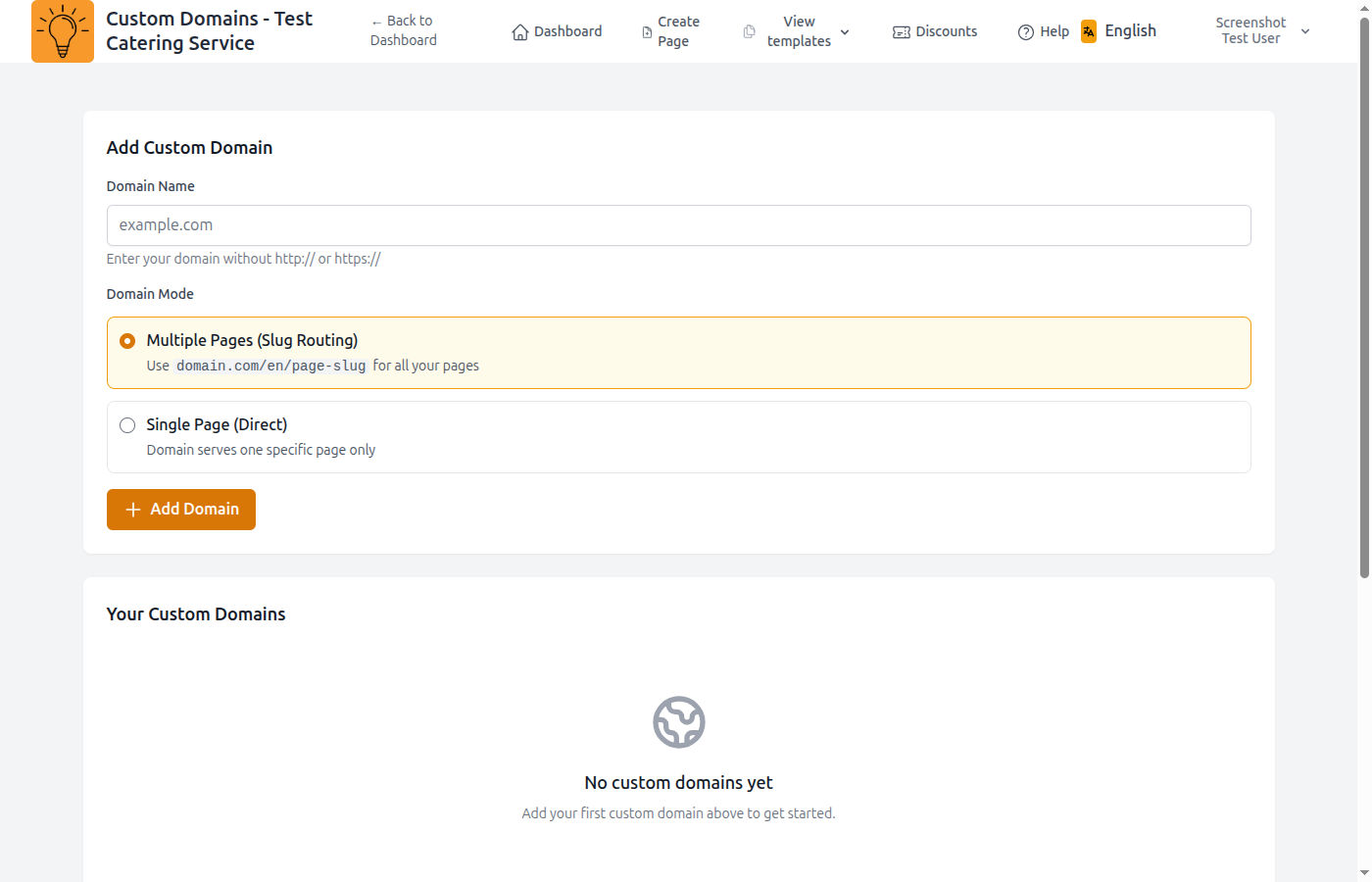
- Go to your page settings
- Find the "Custom Domain" section
- Enter your domain name (e.g., yourdomain.com)
- Click "Save" - you'll receive DNS configuration instructions
Step 2: Configure DNS
Log in to your domain registrar and add these DNS records:
Required DNS Records
| Type | Name | Value |
|---|---|---|
A |
@ or yourdomain.com |
YOUR_IP_ADDRESS |
CNAME |
www |
yourdomain.com |
Note: DNS changes can take 24-48 hours to propagate worldwide. Contact support if you need the exact IP address.
DNS Configuration Screenshot
This screenshot should show your DNS provider interface with properly configured records.
- Examples: Namecheap, Cloudflare, GoDaddy, etc.
- A Record pointing to server IP and TXT record for verification
- Verification code provided in LightPage domain settings
Step 3: SSL Certificate (Automatic)
LightPage uses Cloudflare to automatically provision and manage SSL certificates for your custom domain.
Automatic HTTPS via Cloudflare
Once DNS is configured and verified, Cloudflare automatically provisions a free SSL certificate. This process typically takes 5-15 minutes. Your page will then be served over HTTPS (secure connection).
Troubleshooting
Domain not working after 48 hours
Verify DNS records are correct. Use tools like "DNS Checker" to verify propagation.
SSL certificate error
Wait 24 hours after DNS is configured. If issue persists, contact support.
Wrong page showing on domain
Check that the correct page is linked to the domain in page settings.