Editing Page Content
Learn how to edit and update your page content after creation
Editing Your Page Content
Learn how to update text, images, and other content on your landing page.
Important: If your page is published, any changes you save will be immediately visible to visitors. Save as draft if you want to preview changes first.
Accessing the Editor
- Go to your Dashboard
- Find the page you want to edit
- Click the "Edit" button
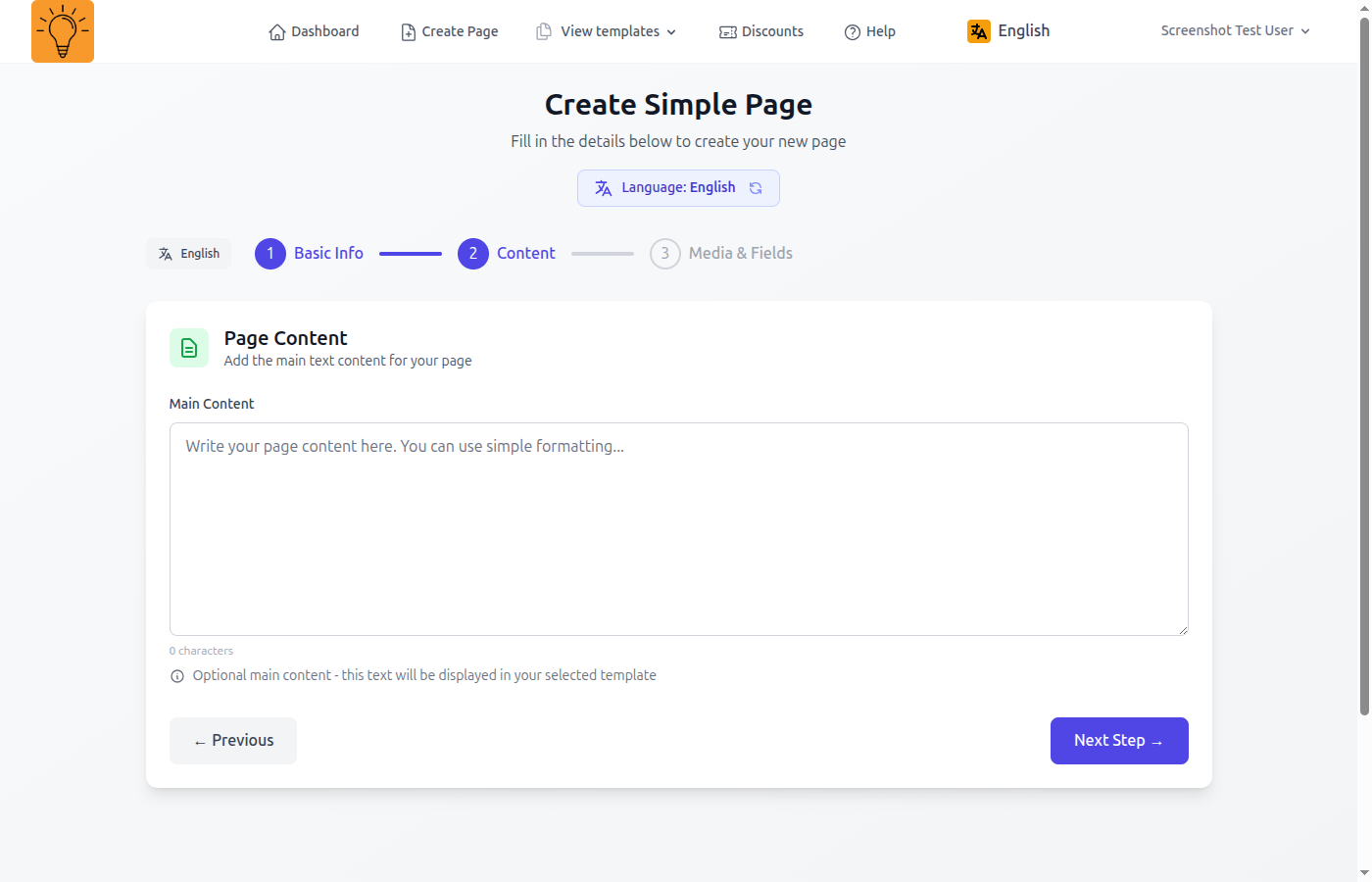
Editable Fields
Page Title
Update your page's main title. This appears in browser tabs and search results.
Subtitle
Add supporting text below your main title to provide additional context.
Text Content
Edit headlines, descriptions, body text, and any text content on your page.
Features Section
Add or edit up to 3 features with titles, descriptions, and icons.
- Features Section: Highlight your key features or benefits with up to 3 customizable feature blocks.
- Feature Text: Describe each feature with a title and detailed description.
- Feature Icons: Choose from 24 professional icons to represent each feature.
Media Management
Add and manage images and videos to make your page more engaging and professional.
Hero Image
The main banner image at the top of your page. Use high-quality images (minimum 1920x1080px recommended).
Image Gallery
Add up to 5 images to showcase products, portfolio work, or visual content.
Avatar/Profile Image
Upload a profile photo, team member image, or brand logo.
YouTube Video
Embed YouTube videos by pasting the video URL.
Custom Fields
These fields are specific to your page type and help templates display your content effectively.
Available Fields by Page Type: The custom fields you see depend on the page type you selected when creating the page.
Saving Your Changes
Always save your work to preserve your changes.
Save as Draft
Saves changes without publishing. You can preview drafts before making them live.
Preview Changes
Preview your changes before saving to see exactly how they'll look to visitors.
Best Practices
Tip
Always preview your changes before saving to see how they'll look to visitors!