Adding a Translation
Create multilingual pages to reach a global audience
Why Add Translations?
Creating multilingual pages helps you reach a global audience. LightPage supports 5 languages, and you can add as many translations as you need.
Supported Languages
- 🇬🇧 English
- 🇺🇦 Ukrainian
- 🇪🇸 Spanish
- 🇩🇪 German
- 🇫🇷 French
Step 1: Click "Add Language"
From your page edit view, look for the language badges at the top. Click the "Add Language" button.
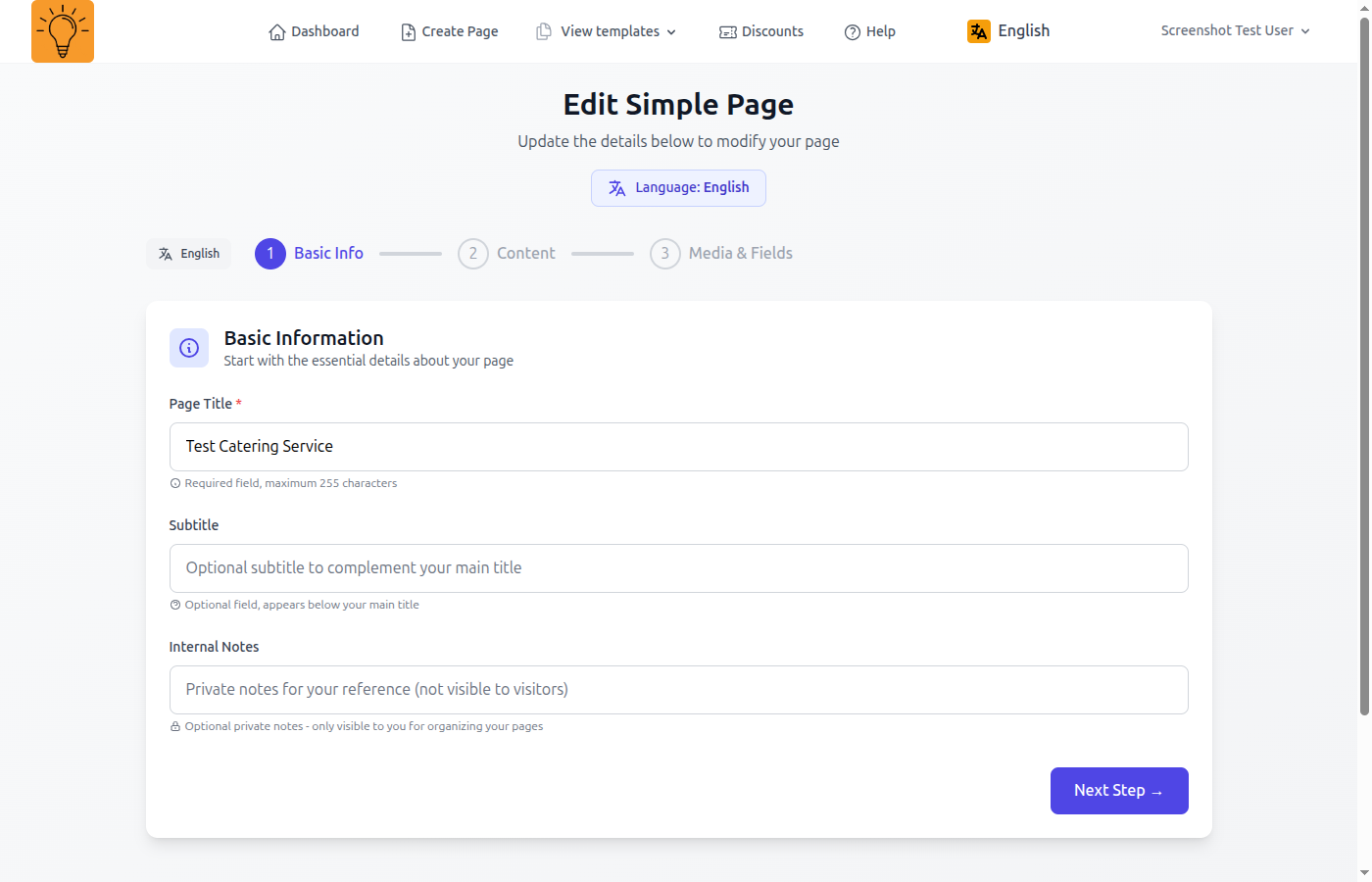
- Open the page you want to translate
- Look for language badges (🇬🇧 EN, 🇺🇦 UK, etc.) at the top
- Click "Add Language" and select the language you want to add
Step 2: Translate Content
Fill in the translation for each field. All text content should be translated to provide the best experience for your visitors.
Page Title
Translate your page title to the new language:
Subtitle
Translate the subtitle that appears below your main title:
Page Content
Translate all text fields, descriptions, feature titles, and other content fields.
Step 3: Media Assets (Optional)
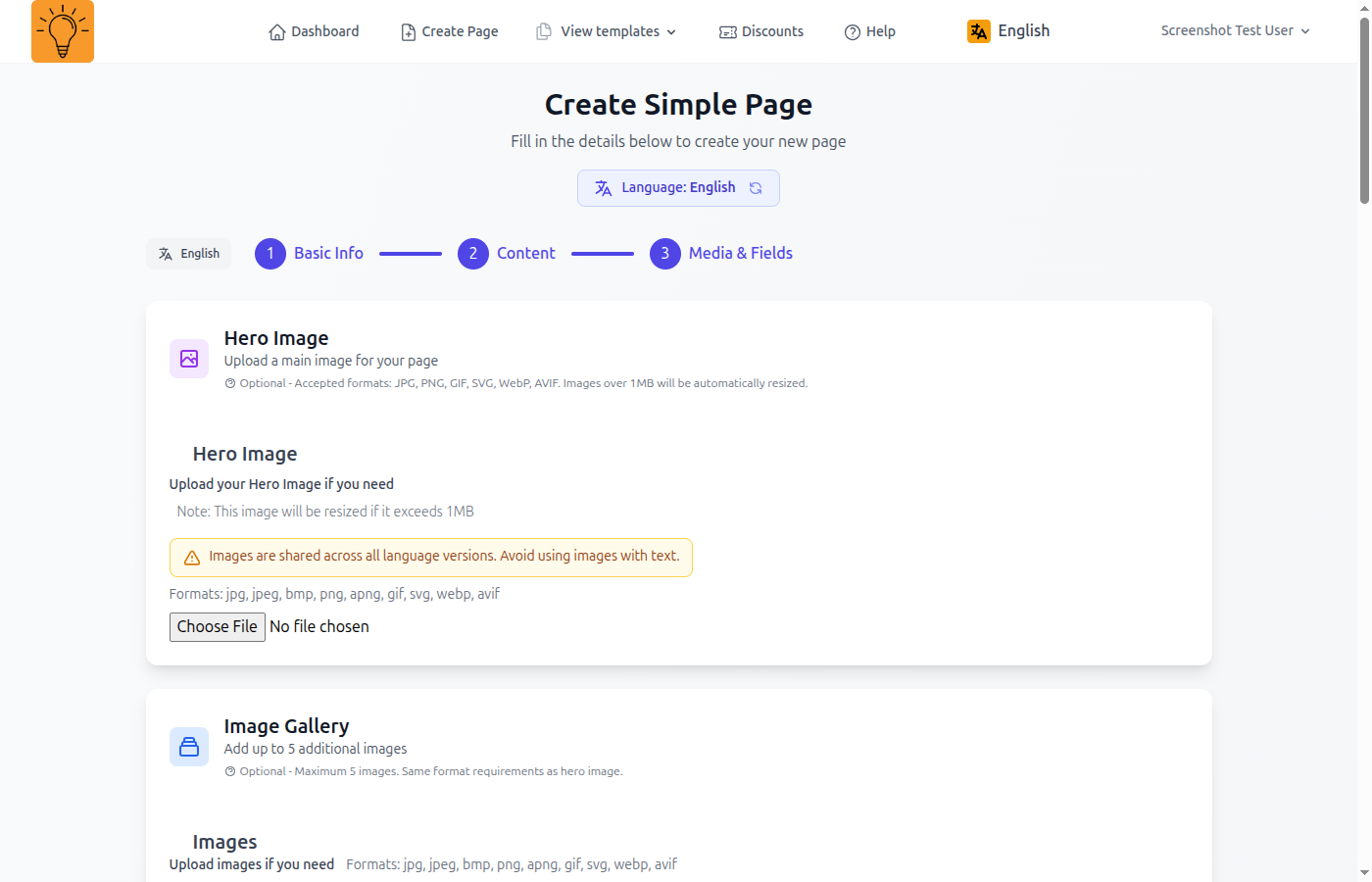
You can upload language-specific images or videos, or reuse the default language assets.
Smart Feature
If you don't upload language-specific media, LightPage will automatically use your default language assets as a fallback. This means you only need to upload media once unless you want different images for different languages!
Translation Tips
Start with your main language
Create your page in your primary language first, then add translations.
Don't auto-translate
Avoid using automatic translation tools. Manual translations are more accurate and natural.
Test language switching
After adding translations, test the language switcher on your published page to ensure everything works correctly.