How to Create a New Page
Step-by-step guide to creating your first landing page
Step 1: Understanding Page Types
Before creating a page, it's important to understand which page type suits your needs.
Available Page Types
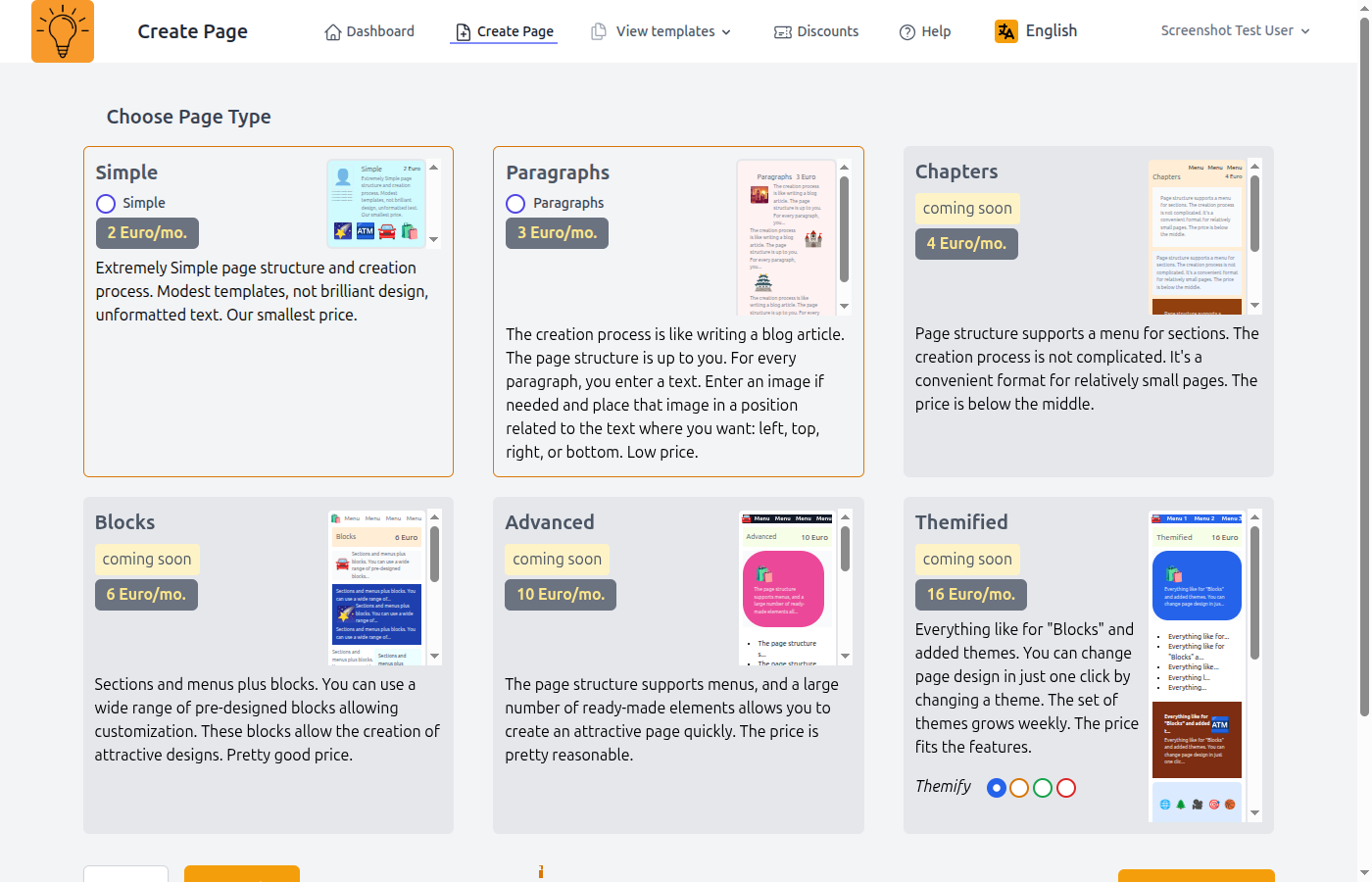
Simple Page
Best for single-page landing pages with standard sections like hero, features, pricing, and contact. Perfect for product launches, services, portfolios, or event promotions.
Paragraphs Page
For content-rich pages with multiple customizable sections. Ideal for detailed product descriptions, multi-step guides, comprehensive service offerings, or complex landing pages with many sections.
⚠️ Important: When to Choose Templates
The timing for choosing templates differs between Simple and Paragraphs page types:
- ✓ Simple Pages: You can change templates anytime - before or after adding content. Your text and images will adapt to the new template design.
- ✗ Paragraphs Pages: You MUST choose the template BEFORE creating your page. Templates provide pre-styled content blocks with colors, fonts, and layouts. Once created, you can only edit the content, not change the template.
Step 2: Create Your Page
After you click "Create Page" in the navigation menu, you'll see the following page where you select which type of page you want to create.
Step 3: Fill in Basic Information
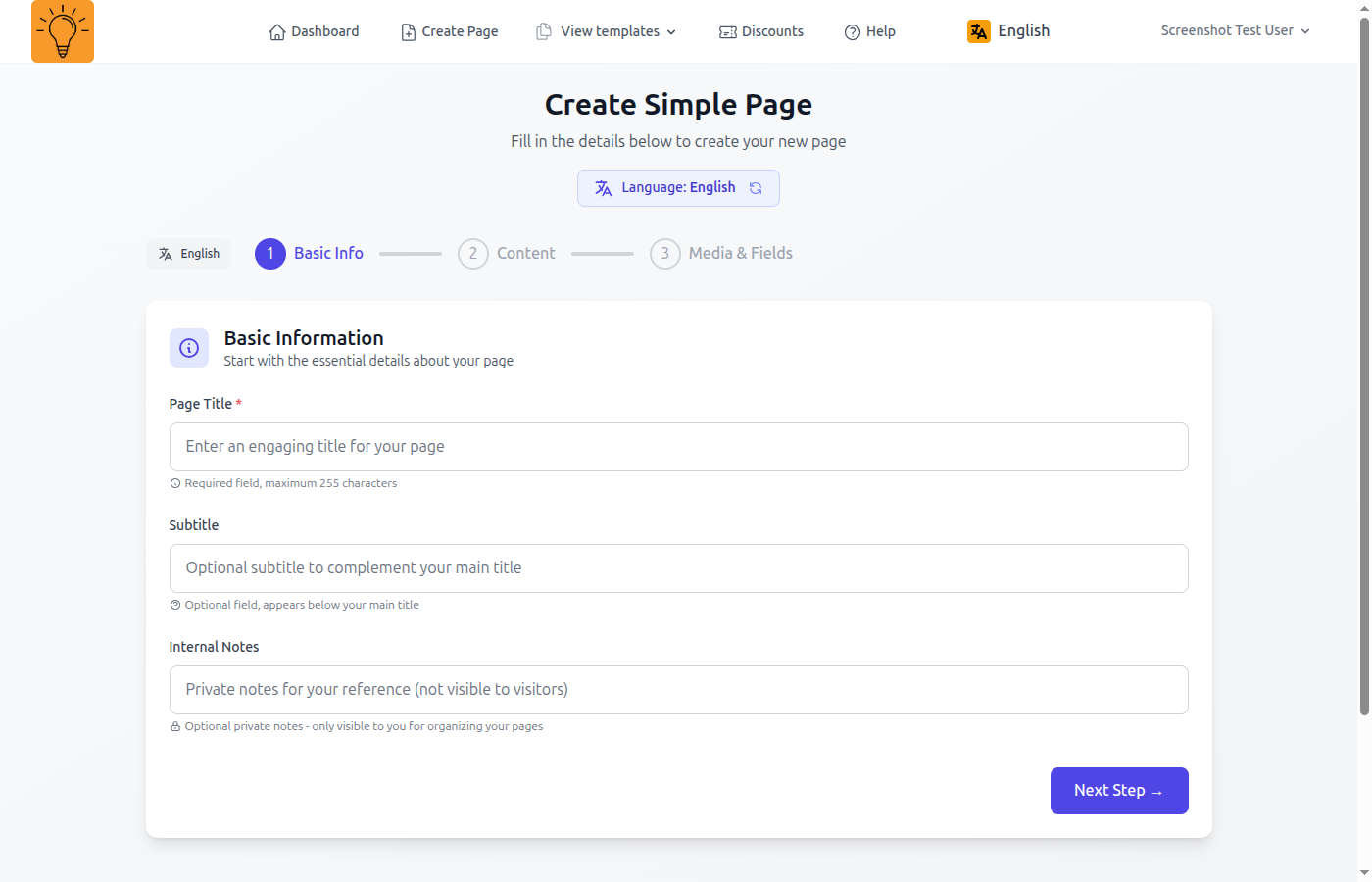
After selecting the language, you'll see the page creation form with essential fields.
Form Fields Explained
Page Title *
Enter a descriptive title for your page. This will be visible to visitors and in search results.
Subtitle
Optional subtitle that appears below your main title.
Internal Notes
Private notes for organizing your pages. Only visible to you, not to visitors.
Step 4: Add Main Content
Write the main text content for your page.
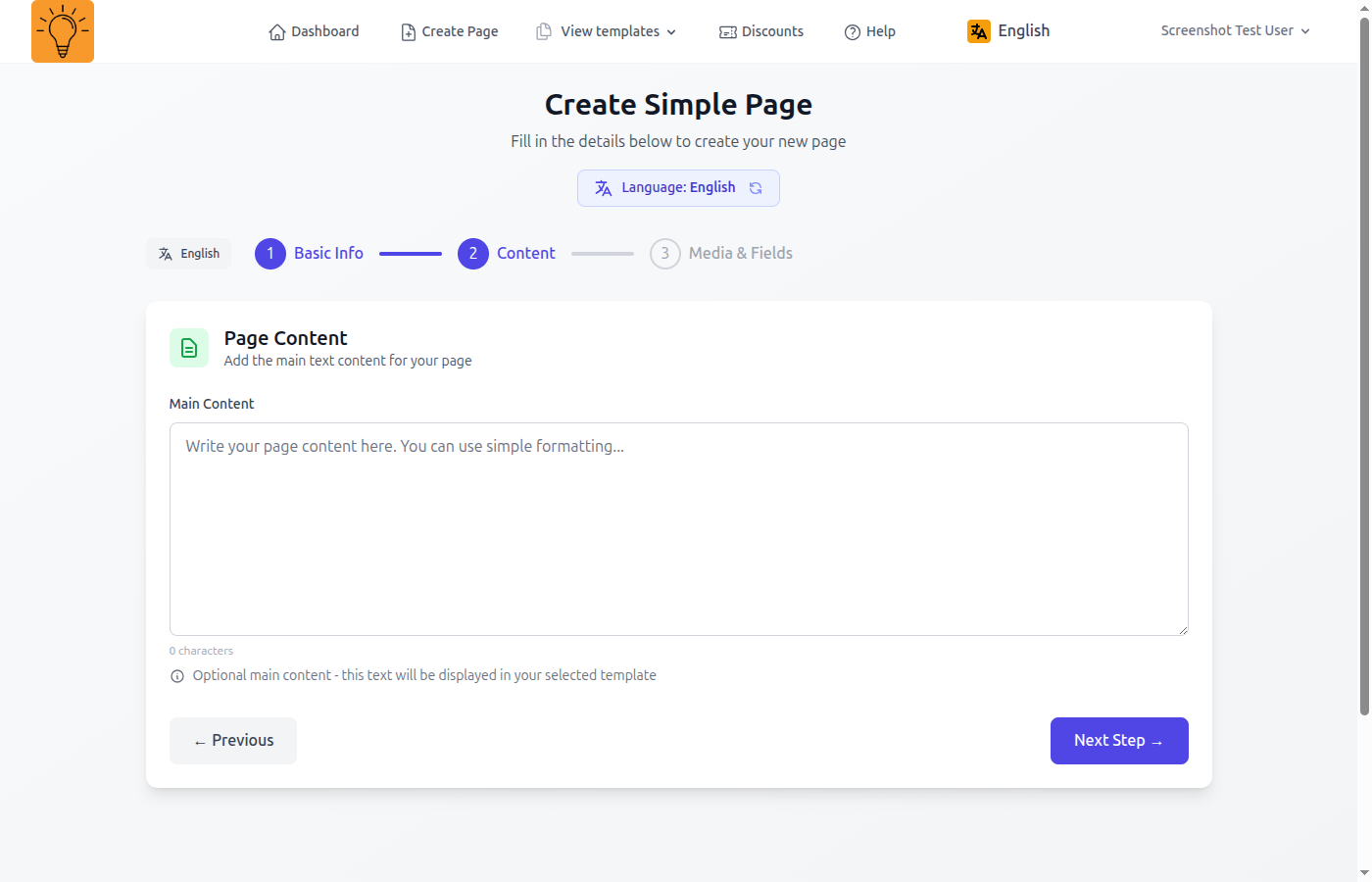
Main Content
Optional main text content that will be displayed in your template. You can always edit this later.
Step 5: Add Media
Upload images and videos to enhance your page. All media fields are optional.
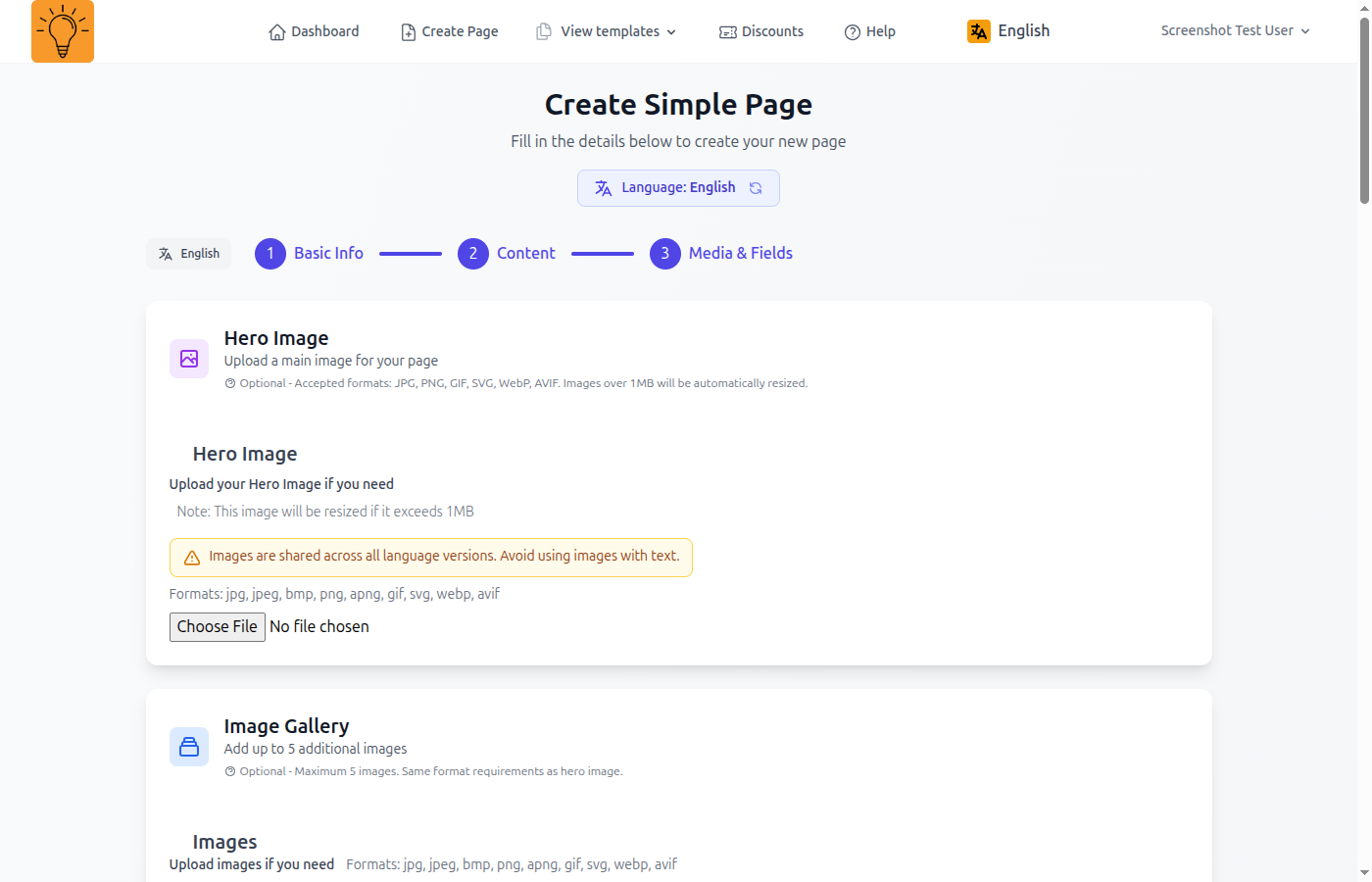
Media Upload Fields
Hero Image
Upload a main image for your page. This appears prominently at the top and creates the first impression for visitors.
Image Gallery
Add up to 5 additional images to create a gallery. Perfect for showcasing products, portfolio work, or visual content.
Avatar
Upload a profile or author image. Great for personal branding, team member profiles, or contact pages.
Supported formats: JPG, PNG, GIF, SVG, WebP, AVIF. Maximum file size depends on your subscription plan.
YouTube Video
Paste a YouTube video URL to embed a video on your page. The video will play directly on your landing page.
Step 6: Custom Fields
Fill in page-specific fields based on your chosen page type. These fields help templates display your content effectively.
Custom Field Types
Features
Add up to 3 features with titles, descriptions, and icons. Choose from 24 icon options including bolt, shield, star, heart, and more.
Price
Enter pricing information for your product or service (max 12 characters). Examples: "$99", "Free", "€49.99".
Step 7: Save and Choose Template
Click "Save" to create your page. You'll be able to choose a template and customize further in the editor.
Tip
After creating your page, you'll immediately be able to choose a template and start customizing your content!