Changing Your Template
Switch to a different template anytime to refresh your page
Changing Your Template
Switch to a different template anytime to refresh your page's look.
When to Change Templates
- You want to refresh your page's visual style
- You need a different section layout or structure
- Your brand colors or style have changed
- You want to experiment with different designs
Before You Change
Here are some important things to know before changing your template:
Your Content is Safe
All your text, images, features, and custom fields are preserved when changing templates. Only the visual design and layout change.
Preview Before Applying
Always preview templates before applying them to see how your content will look in the new design.
Tip
Save any unsaved changes to your current page before browsing templates. This ensures you don't lose recent edits.
Step-by-Step Guide
Step 1: Open Editor
Go to your page edit view from the Dashboard.
- Go to your Dashboard and find the page you want to update
- Click on the page to open the editor
- Look for the "Change Template" or "Browse Templates" button (usually near the top)

Step 2: Browse Templates
Click "Change Template" or "Browse Templates" button.
Use Filters to Find Your Perfect Template
- Design Style - Choose from 13 themes (Corporate, Creative, Minimal, etc.)
- Layout Style - Select minimal, standard, split, or sidebar layouts
- Color Palette - Find templates matching your brand colors
- Features - Filter by components (hero, gallery, testimonials, etc.)
- Complexity - Choose simple, moderate, or advanced layouts
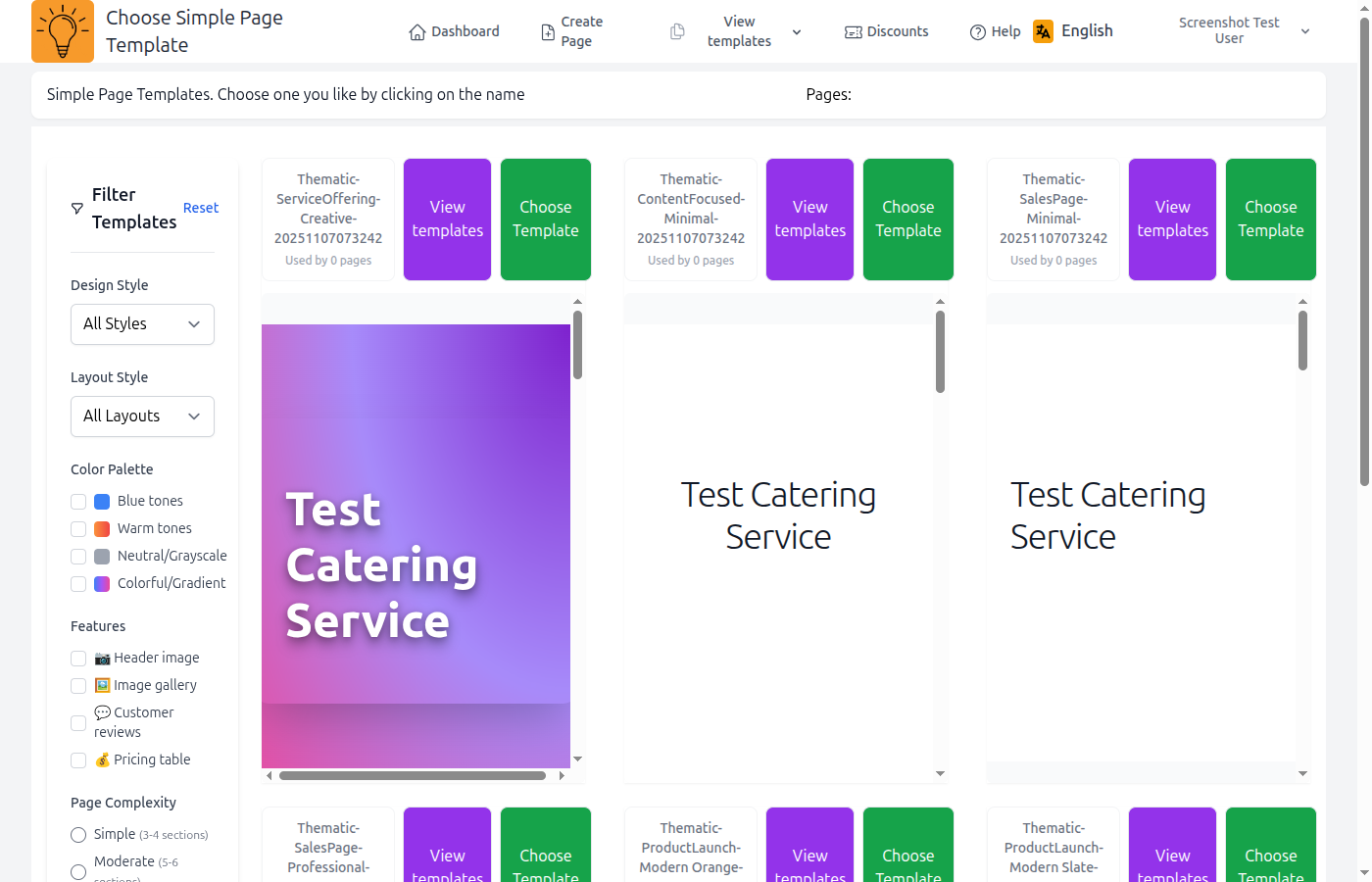
Step 3: Preview and Select
Click any template to preview it, then click "Select Template" to apply.
- Click on the template thumbnail to see a full preview
- Review how your content will appear in the new layout
- If you like it, click the "Select Template" or "Apply Template" button
- The template will be applied immediately to your page

Review Changes
After applying the new template, review your page to ensure everything looks good.
Important: You may need to adjust some spacing or content positioning based on the new layout, but all your content will be there.
What Happens to Your Content
When you change templates, here's exactly what gets preserved and what changes:
What's Preserved
- ✓ All text content (titles, subtitles, descriptions, body text)
- ✓ All media (hero images, gallery photos, avatars, videos)
- ✓ Feature blocks (titles, descriptions, icons)
- ✓ Custom fields (price, contact info, location, etc.)
- ✓ Page settings (slug, language, visibility)
What Changes
- → Overall visual design and theme
- → Section layout and arrangement
- → Color scheme and gradients
- → Typography and font styles
- → Spacing, padding, and margins
Examples
Example 1: Text Content
Your hero title "Welcome to Our Product" stays the same, but it might be displayed in a different font, size, or position in the new template.
Example 2: Images
Your uploaded hero image remains, but the new template might display it full-width instead of in a split layout, or with different aspect ratio.
Example 3: Features
Your three feature blocks stay intact with the same titles, descriptions, and icons, but might be arranged horizontally instead of vertically.
Content Preservation Rules
Understanding how content is preserved helps you choose templates confidently:
Text Content
All text fields (title, subtitle, text, features) are preserved exactly as entered. The new template applies different styling but keeps your words unchanged.
Images & Media
All uploaded images remain in your media library and are automatically applied to the corresponding sections in the new template (hero, gallery, avatar).
Feature Blocks
All feature titles, descriptions, and selected icons are preserved. The new template may display them differently (cards, list, grid) but the content stays the same.
Custom Fields
Page type-specific fields like price, contact information, or location data are preserved. If the new template doesn't display a field, it's still stored and can be shown by switching to a template that uses it.
Multi-language Content
If you have translations in multiple languages, all language versions are preserved when changing templates. The new template applies to all languages.
Reverting Changes
Changed your mind? You can easily revert to your previous template or try a different one:
How to Revert
- Go back to the template gallery (click "Change Template" again)
- Browse or search for your previous template
- Select and apply the original template
- Your page will return to the previous design with all content intact
Note
LightPage doesn't track template history, so you'll need to remember which template you were using. Consider noting the template name before changing.
Best Practices
Preview Before Committing
Always preview templates before applying them. Click on several templates to compare how your content looks in different designs.
Use Filters Effectively
Narrow down options using filters. If you have specific brand colors, filter by color palette. If you need a gallery section, filter by features.
Check All Sections
After applying a new template, scroll through your entire page to ensure all sections display correctly. Pay special attention to image aspect ratios and text length.
Test on Multiple Devices
Preview your page on desktop, tablet, and mobile after changing templates to ensure it looks good on all screen sizes.
Don't Be Afraid to Experiment
Since your content is always preserved, feel free to try different templates until you find the perfect match. There's no limit to how many times you can change.
Consider Your Content First
Choose templates that complement your content volume. If you have long text, avoid minimal templates. If you have many images, choose gallery-focused designs.
Troubleshooting
Images Look Stretched or Cropped
Different templates use different aspect ratios for images. If an image looks distorted, you may need to upload a version with different dimensions. Most templates work best with 16:9 (landscape) or 1:1 (square) images.
Text is Too Long for the New Layout
Some minimal templates have limited space for text. Consider shortening your content or choosing a template with more text-friendly layouts. Your original text is still preserved if you change back.
Features Section Missing
Not all templates display feature blocks. If your features aren't visible, they're still saved in your page data. Switch to a template that includes a features section to see them again.
Colors Don't Match My Brand
Each template has its own color palette. Use the color filter when browsing templates to find designs that match your brand colors, or try different templates in the same theme family.
Template Gallery Won't Load
If the template gallery doesn't load, try refreshing the page. If the problem persists, clear your browser cache or try a different browser. Check your internet connection.
Pro Tip
Create a duplicate of your page before making major template changes. This gives you a backup to compare against or revert to if needed. You can delete the duplicate once you're happy with the new design.